
Combine images into multi-page pdf quickly
Ivan | Sun, 2011-02-27 14:45
If you have several images that you need to combine into a multi-page document you can do it quickly in OSX with the Preview app.
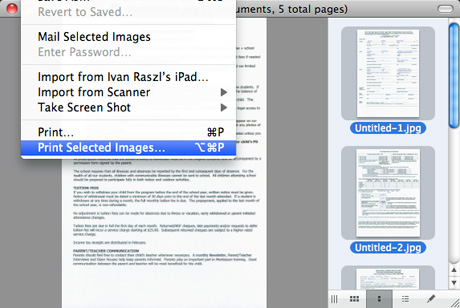
- First open all the images in Preview
- Put them in the correct order by dragging them to their right place
- Click Edit / Select All
- Click File / Print Selected Images...
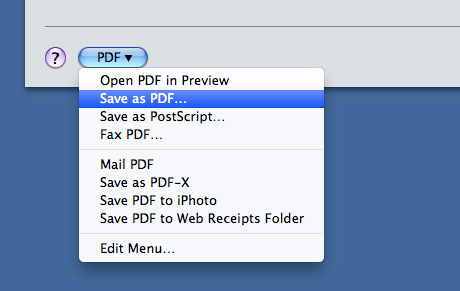
- Finally click the PDF button in the bottom left corner of the window and select the Save as PDF...
- Done
Commenting on this Blog entry is closed.

If this was facebook, this post would get a 'like' from me :)
From success to failure is one step. From failure to success is a long road.
Here you go:
Sounds very useful. I'll have to remember that one.
If you own Acrobat Pro, you can also drag a batch of jpeg files directly to the Acrobat Pro icon and it will ask you if you want to combine all the files together. As long as they are in alphabetical order you are good to go. Or once opened into Acrobat, you can click on the Pages icon in the upper left corner and drag their icons to reorder them
This tip credited to Matt C and Adam K!
Sweet, useful thanks. :)
Graphic Design Manchester
Or you can use Bridge if you have the creative suite installed.
In the Output mode you can make a pdf from evrything on your harddrive.
Bridge is underestimated.
grtz
Since we have all the experts here - does anyone know a quick and easy way to catalog a pile of stock photos into a pdf file? Not individual pages for each photo, but some way where it will build a page with 8, 10 or 12 photos with the photo names and BAM! - make me a pdf so I can look thru my photos without being locked into some proprietary software? I know that's asking a lot - but I have faith in you guys. :)
Any ideas?
Windows 7 does this too!
http://stevefakeballmer.wordpress.com
I am not Steve Ballmer pretending not to be me!
This is wonderful tutorial. Thanks for writing.
Useful article. Just what I was searching for!