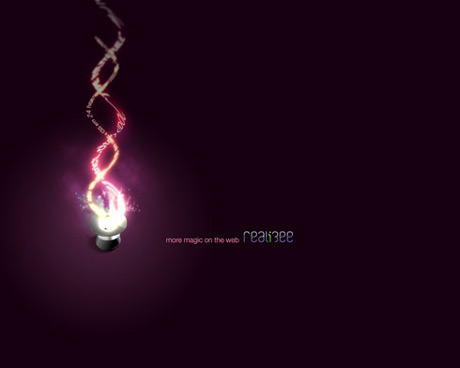
Magic hat light effect in Photoshop
Ivan | Thu, 2007-03-29 06:06Here is a great tutorial for all the Harry Potter fans out there from abduzeedo.
First of all here is the end result of this tutorial:![]()
Step 1
Create a radial gradient, in this case from a purple to a really dark purple.
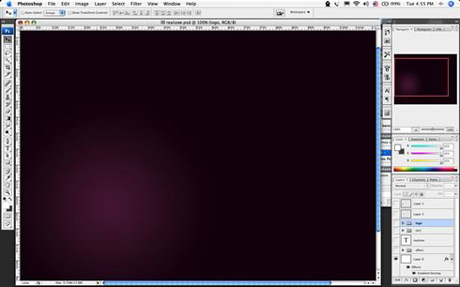
Step 2
Add a really cool Icon of a magic hat from the Crystal Clear Collection by Everaldo.

Step 3
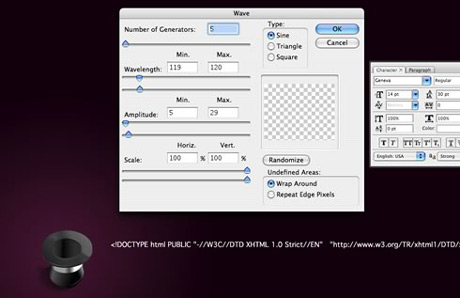
Add some text and apply the Distort/Wave filter. Create two stripes of text.
Step 4
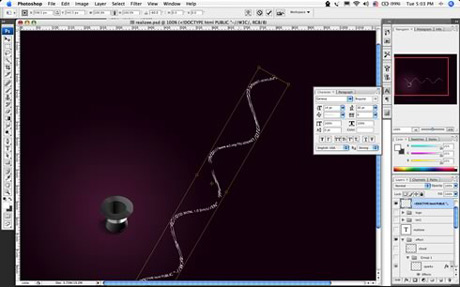
Rotate and place the text.
Step 5
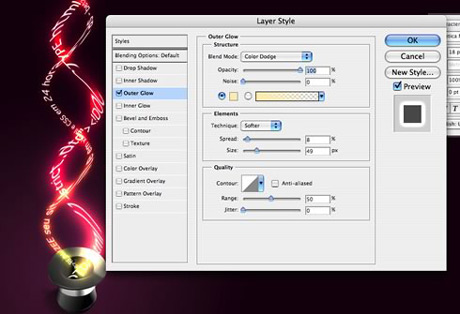
Add some light using glow: Use different values for each line of text, the secret here is the blending option COLOR DODGE. Change the values of Spread, Size and Range.
Step 6
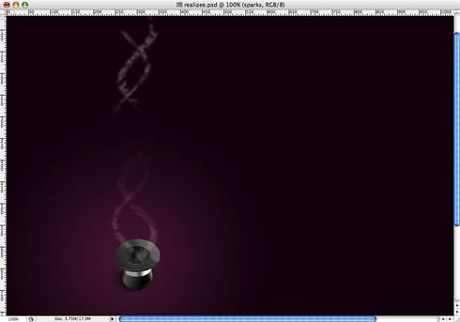
Group the 2 lines of texts and with one apply a mask to make the stripes disappear at their ends.

Step 7
With the other group of text apply a Gaussian blur, after that delete some parts to show the non-blury text. This will add a movement feel to the text, like they are really being magicaly created.
Step 8
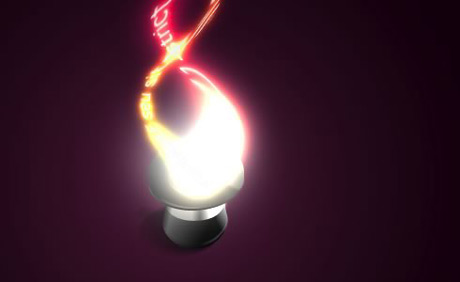
Create a new layer below the text and with a regular big brush like 100px add a spot of light in white. The layer must be below the text, otherwise the glow will not affect the white spot.
Step 9
Make some smoke again, I used the eraser, you could've used the liquify as well.

Step 10
Create a cloud: to do that make use a marquee with feather set to a value bigger than 20 and apply the render>clouds holding the Apple (Cmd) key on Mac OS X or CTRL on Windows. Apply the COLOR DODGE blending options on it.

Step 11
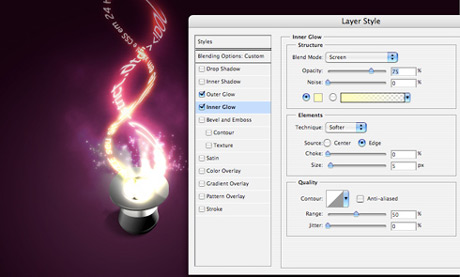
Sparks: For the sparks create a brush, play with the shape dynamics, scatering, and other dynamics. After that, apply a Outer Glow and Inner Glow to create the magic effect.
Final result again
![]()
The whole process takes about 35 minutes. It is really cool is to apply the color dodge blending option to the folder, and put blurred elements inside it. Using it you can create some really amazing light effects.
The PSD files can be downloaded below and thanks again for this tutorial to abduzeedo.
| Attachment | Size |
|---|---|
| 323 bytes | |
| 1.11 MB |
Commenting on this Blog entry is closed.

Great article Ivan!
Hm does this mean I'm being accepted to Hogwardts this year?
Thanks for the tutorial, I'll go and try it now.
Brochure Printing by 10th Way
Great tutorial. I always wondered how to create such a thing. I thought for sure it could only be done well in a 3D program, but you definitely proved me wrong.
Johnny Blaze the Smoke Juice man
As with the original post of this tutorial on Abduzeedo's site, the tutorial is missing a few very important things to be truly complete. For anyone who only "dabbles" in Photoshop, you should probably not bother attempting this tutorial. Pros should be able to fill in the gaps on their own though.
By the way, if you like this tutorial, you should check out his tutorial on smoke... awesome - but again, missing steps/info.
-----------
Visit Creative Guy for graphics and Mac OS tips, tricks, tutorials and commentary
-----------
Visit The Graphic Mac for graphics and Mac OS tips, reviews, tutorials and discussion.
Ivan, thanks for posting my tutorial on your site, I'm glad you liked it....
really a good tutorial....but if u explain ur steps than a new guy can also create easily......
http://www.cgnature.com
This tutorial is basically worthless. You're missing way too many key elements. Not even close to being useful.
This is a good tutorial. Have you tried further enhancing the tutorial with the advanced features available in the new Photoshop CS3 version?
clever. simple and clever. i love it!
I Love it!
You would have to really know your way around to make it happen that fast. Great.
tahir fantastic & creative i like it
tahir
tahir fantastic i like it
tahir
I like tutorials done in this manner. It's nice to see an idea without getting bogged down with tedious step-by-every-step details. People should learn photoshop not as a step by step method but by thinking about every function as a concept. Much more creative that way.
time is an illusion
Any chance you could explain "with one apply a mask to make the stripes disappear at their ends"? Thanks and I love what I've learned so far.
Thank for your excellent tutorial and I hope you can give me the other excellent tutorials. Thank so much.
Great tutorial mate i will spend some hours with that.
____________
Capricorn media