
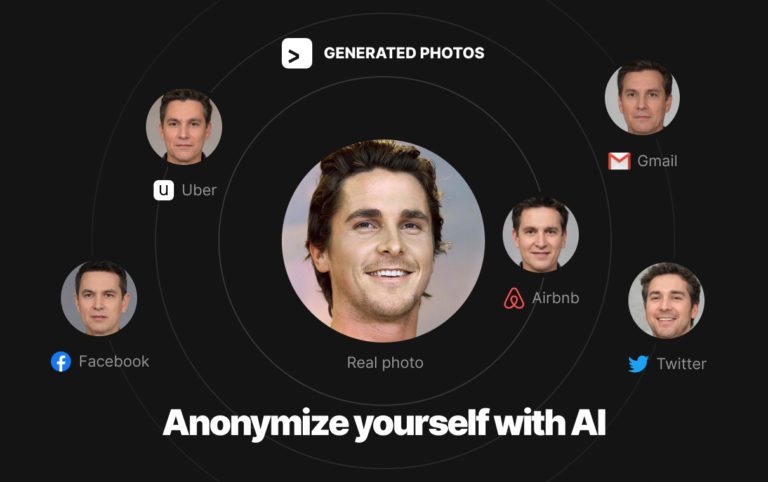
Recently we launched our AI Anonymizer, an online tool that creates your synthetic look-alike and helps protect identity online. Twitter, known as ...
Hatchful is a logo creation tool developed by Shopify, designed to help businesses and entrepreneurs quickly and easily design logos. It’s intended for those who lack design skills but want to ...
The world of video games is not just about immersive gameplay and captivating storylines; it’s also about the brand identity that each game carries. At the forefront of this identity is the video ...
Graphic design’s role in music transcends mere aesthetics; it’s a critical component of an artist’s identity and marketing. This article explores essential graphic design software ...
The term User Experience (UX) encompasses the comprehensive range of interactions and experiences a user has with a company’s products and services. But, a profound understanding of UX is more than ...
In the digital realm, the user interface (UI) acts as the pivotal point where human-machine interactions occur. Selecting the right UI tools is more than a mere choice; it’s an essential step ...
The musical realm is vast and incredibly diverse. Amidst this myriad of talents, bands are constantly vying for a unique identity, a mark that resonates with their audience and represents the essence ...
In the rapidly evolving landscape of web design, the incorporation of 3D scenes has emerged as a revolutionary trend, pushing the boundaries of creativity and interactivity. The term “3D scenes” ...
Introduction
In today’s fast-paced digital world, the demand for immersive and engaging content is at an all-time high. Whether it’s for gaming, animation, architecture, or product design, ...
How to Change App Icons on iPhone?
With the introduction of iOS 14, Apple brought a wave of customization options for iPhone users. One of the most talked-about features is the ability to change app icons on the home screen. This feature ...
Ever wondered why a floppy disk symbol still represents the ‘Save’ function in many applications even though floppy disks are practically ...